
Getting started
1. Organise your footage
Put each camera and each recorder in its own folder, inside one shoot folder. Each folder becomes a track:
My Shoot/
  A cam/
  B cam/
  Zoom/
  Lav/
That's usually how cards come off set anyway. Clam Sync also copes with:
- Card structures such as
DCIMorPRIVATE: a folder holding one card is treated as one source. - Day folders (
Day 1/A cam,Day 2/A cam): kept as separate tracks. - Two cameras in one folder: split into two tracks by camera model.
- Camera WAV copies (some cameras write a WAV of their own audio next to each video): spotted and left out. You can keep them in the options.
- Loose clips: grouped by the folder they're in.
2. Add it
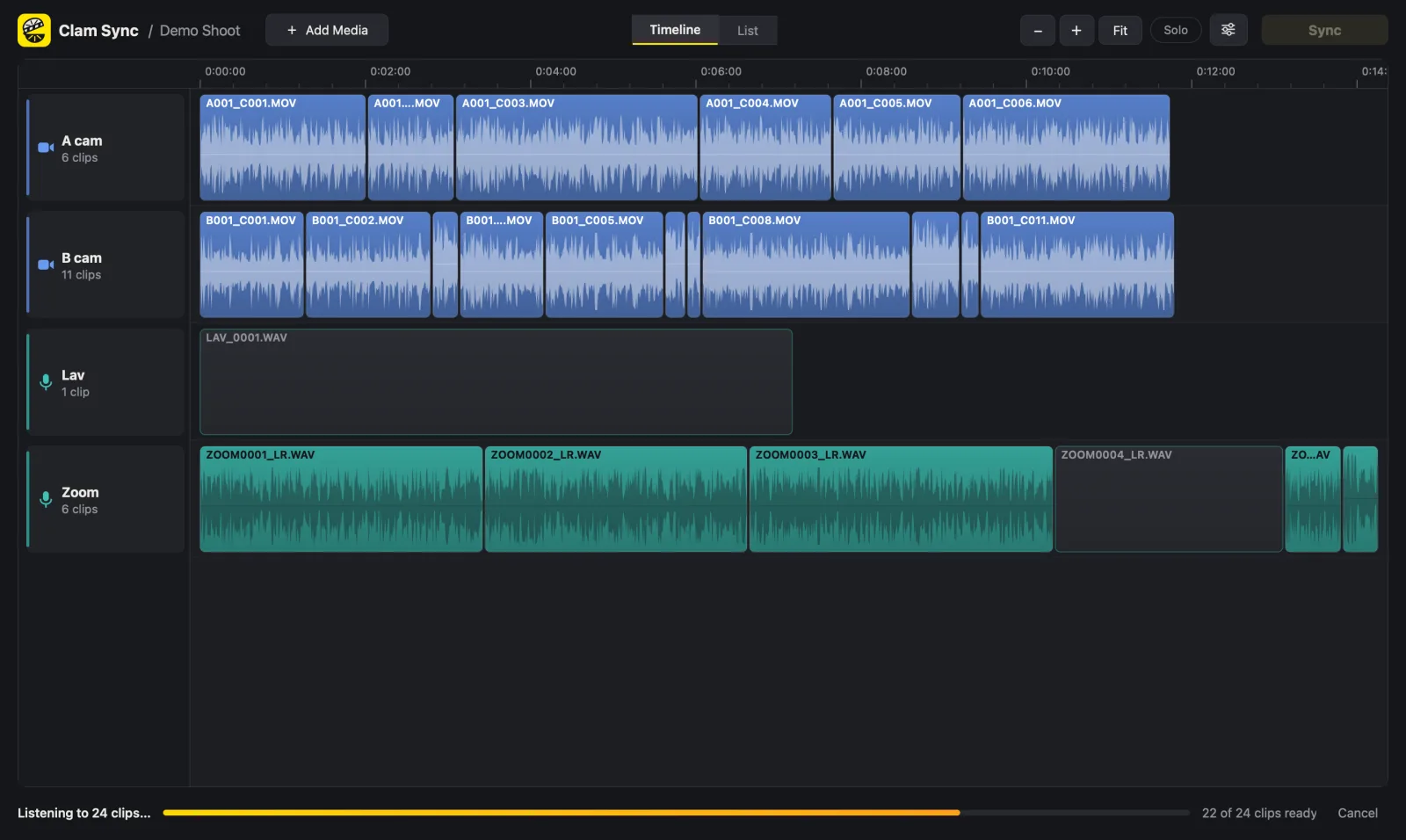
Drag the shoot folder onto the Clam Sync window, or use Add Media. You can add more folders or single files at any time. A timeline appears straight away and waveforms fill in as each clip's sound is read.
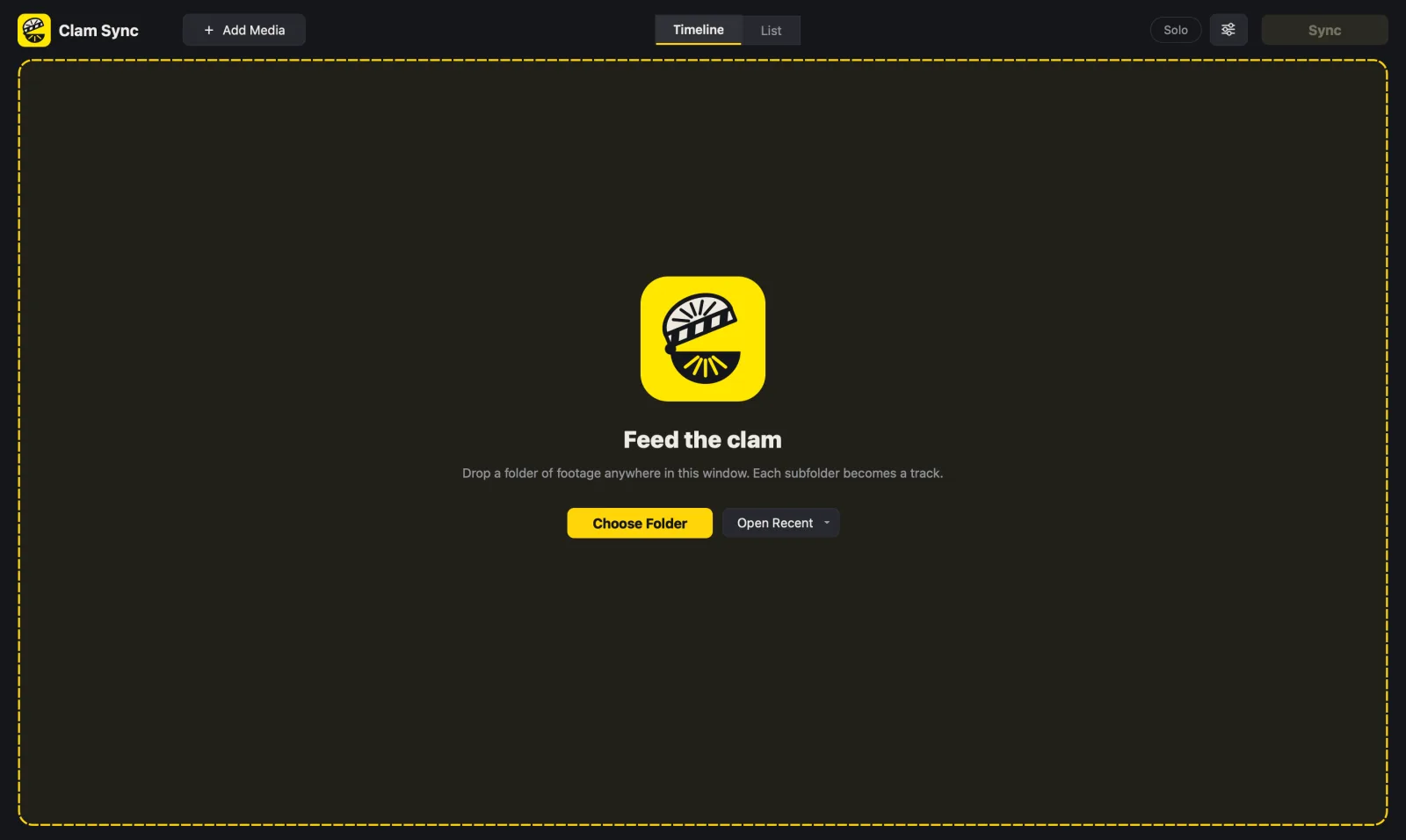
Already started in your editor? Export an XML from Premiere Pro or Resolve and drop that in instead: its tracks become the sources.
3. Sync
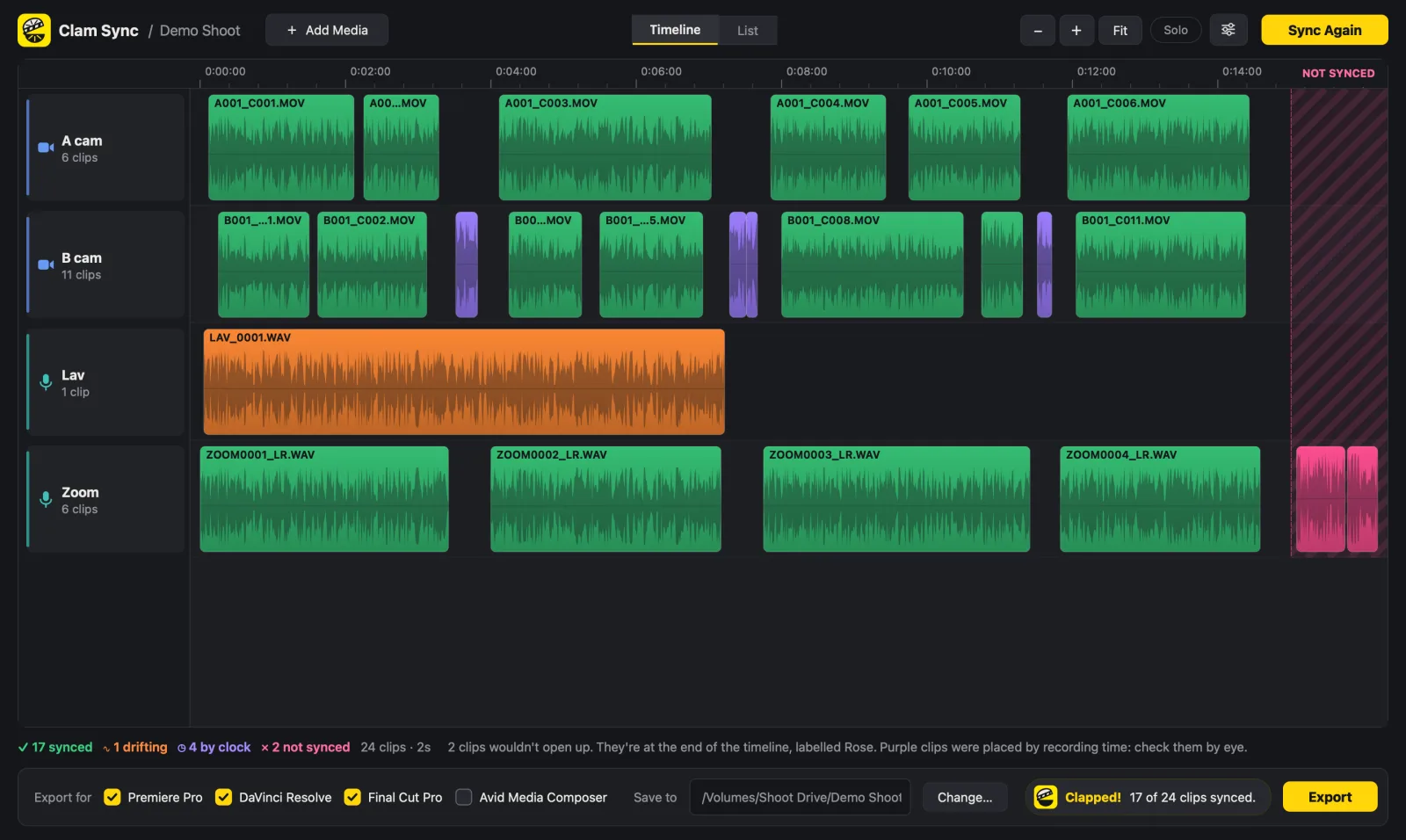
Press Sync. Clips slide into place, coloured by how they were synced:
- Green: synced by sound.
- Cyan: no sound match; placed by timecode.
- Purple: no sound match; placed by its recording time. Check by eye.
- Orange: drifts over its length; synced at the middle.
- Red: couldn't be placed; parked at the end to sync by hand.
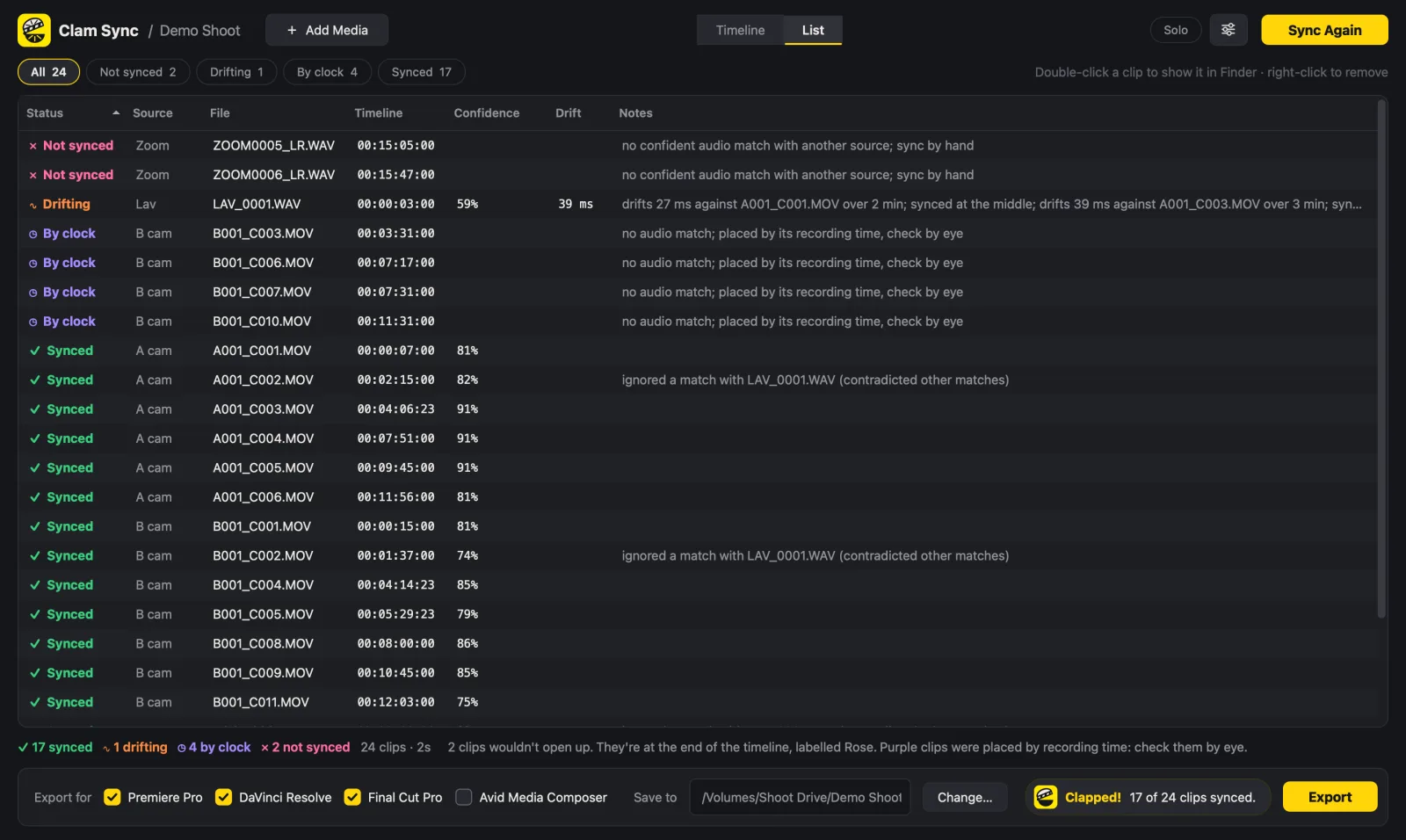
Switch to List to see every clip with its confidence and notes. Remove a clip or a whole track with right-click; there's no need to sync again.
4. Export
Tick the editors you use, choose where to save, and press Export. You get a timeline file for each editor plus a sync report (CSV). Then import it into your editor.

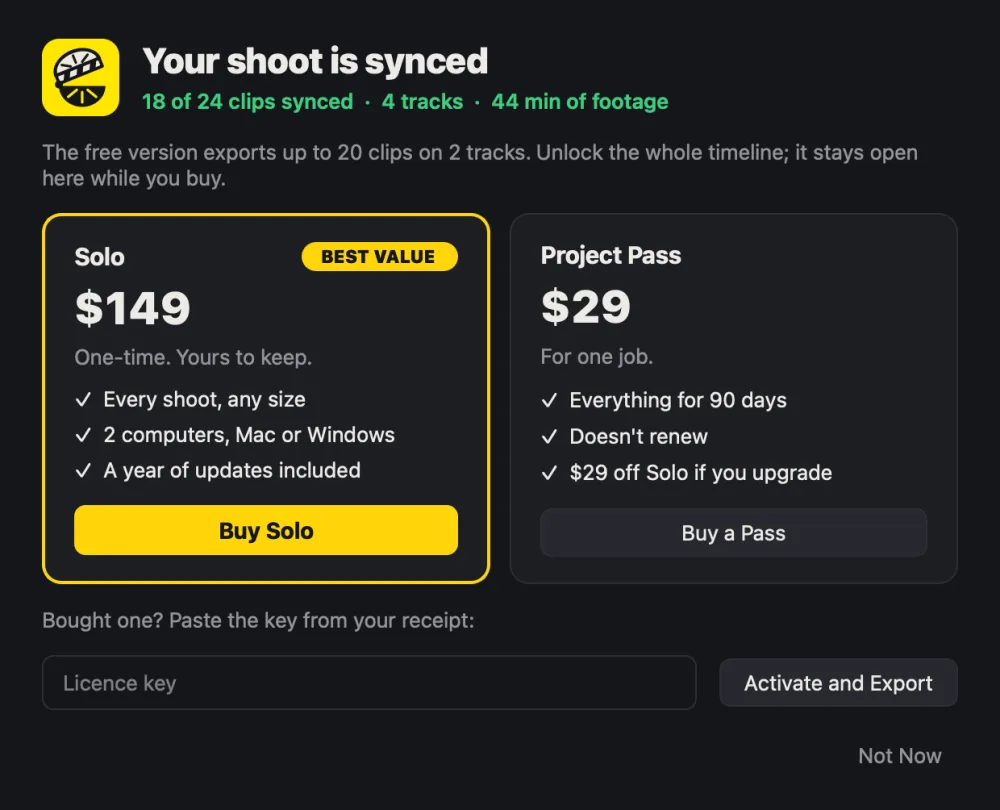
On the free version, timelines of up to 20 clips on 2 tracks export straight away. For a bigger one, Clam Sync shows what it synced and offers Solo or a Project Pass; paste your key in the same window and the export carries on.
Options
- Use timecode: on by default. See Timecode.
- Place unmatched clips by recording time: on by default. Off puts every unmatched clip at the end.
- Keep camera WAV copies: off by default.
- Final Cut Pro: also make a multicam clip: Mac only, off by default.